Wednesday, October 14, 2015

ePSXe video settings for some Intel Compute Stick gaming

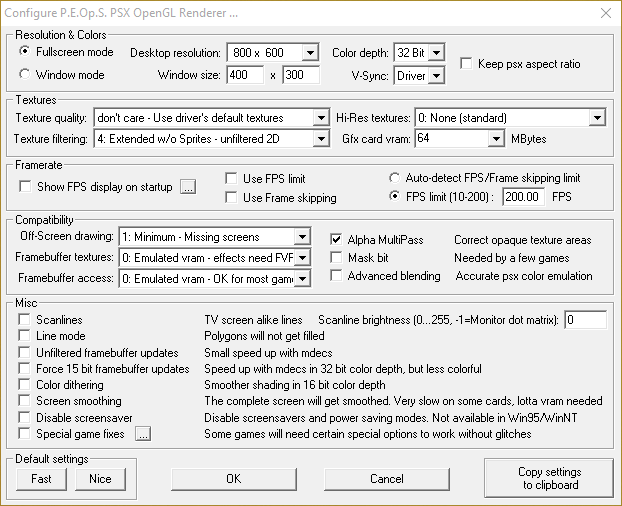
I've been tweaking ePSXe 1.9.25 to an extent and so far I've managed some decent gaming with these video settings :

(Click image for larger version)
Notice I'm using the "P.E.Op.S. PSX OpenGL" Renderer. Look for ePSXe Starter Pack  that conains most of the popular plugins.

Monday, October 12, 2015

Gaming frontend Launchbox is amazing.

If you happen to use your Compute Stick for retro gaming on Windows and you have it plugged in to your TV than a good looking gaming frontend that collects all your emulators and Roms along with DOS and PC games is something you might be looking for. I happily stumbled upon Launchbox that not only gathered all my games in one central place, it also scraped information and covers from multiple sources and to top it all off it has Kodi integration with a mode called Big Box so that you get a game launcher that behaves well and compliments your Kodi setup.

The main Launchbox GUI
The Big Box GUI
The app setup uses a wizard, you select your Roms folder, the platform and the emulator location and you're done, it starts scraping information and presenting your games in the order you prefer along with images. A search bar at the top is helpful for finding games, you can favorite them and sort them according to that and you can change the game information or ask for new through the edit dialog.


The app is free to use but Big Box (big screen UI and Kodi integration) needs a lifetime licence of $20, well worth it if you ask me.

Friday, October 9, 2015

Gaming on the Stick

I'm guessing that common sense would prevent you from buying such a device for gaming but then again once you have it there's no harm in trying.


So far I've tested MAME emulation that works great out of the box, but you can run that stuff on your watch nowadays. I've also tried PSX emulation that needs a graphics card to handle OpenGL acceleration but there is a driver called "P.E.Op.S OpenGL Driver 1.78" and it worked like a charm. On the driver preferences I've chosen Fullscreen 800x600 that fills my 1080p screen just fine, color depth 32bit, Texture filtering 4, Gfx Card Vram 64Mbytes. 


The PSX Disney titles I tried with the driver played just fine although some games displayed flaws that I wasn't willing to fix, but that just needs a little tweaking.

On the Windows side of things 
some simple Disney 3D titles that I tested ( Despicable Me and Cars ) played fine, for a five year old gamer (that will be using this setup), that's more than enough.
On my quest for better PSX graphics I tried ePSXe for Android, connected my wireless gamepad with a USB OTG cable, loaded PSX games and since I own a Chromecast I sent them to my TV and everything worked just fine (with a slight lag that is).

All in all you shouldn't count on this stick for any heavy duty gaming but for casual gaming and emulators it is more than enough.

Tuesday, October 6, 2015

Welcome to my "Adventures with a Compute Stick" blog.


I am the proud owner of a 32gb Windows Intel Compute Stick and so far I've managed to do some pretty remarkable things with such a small device. My future posts will be detailing some of my achievements. Amongst other things I'm using the Stick as a Media Center PC on my TV that offers the following features :

  • 1080p native resolution
  • Windows 10 through an update
  • Cordless headphone listening by connecting a Stereo Bluetooth Headset
  • 1080p high bitrate wifi streaming off a NAS using Kodi (XBMC)
  • MAME and PSX cordless gaming with the use of a Logitech cordless gamepad and emulators
  • Music Streaming and remote control with Spotify and Google Play Music
  • AC3 and DTS passthrough to my Amplifier through my TV's S/PDIF coaxial connection

I've extended the capabilities of the Stick by connecting the following :

  • A powered USB hub that gives 4 connections
  • A wireless all-in-one keyboard that's connected with a dongle on the hub
  • A wireless gamepad connected with a dongle
  • A 32gb MicroSD
  • The aforementioned Stereo Bluetooth Headset

Regarding performance and resposiveness on day to day tasks I can atest that the stick is amazing. Windows 10 performance is snappy considering that you're working with an Atom powered device , you wouldn't load Photoshop on the thing so day to day would be media playback, light gaming with casual games and some children's titles from the Windows Store.

So let's dig deeper starting with cordless audio connectivity..

So, you want headphones with that Stick?

The Intel Compute Stick doesn't come with a headphone jack connector ( or many others for that matter ) but that shouldn't stop you from cordless listening of that movie you're watching late night. Connecting a corded pair of headphones to your TV ( if it provides such a connection ) is one way to go but if your TV is far from your couch or you don't want cords messing your living room you can go cordless using a Bluetooth Stereo Headset.
The idea for the bluetooth headset came to me after reading that the new Apple TV will support such devices. Knowing that the Compute Stick has Bluetooth capabilities I went on to connect my Nokia BH-111 Stereo Bluetooth Headset ( currently retails for 22,00 € on Amazon ). 


The steps needed to connect your headset on Windows 10 are as follows :
1. Make your headset discoverable (usually by pressing the power button extensively)
2. Open windows notifications and select "Connect" 


3. On the top of this window your headset will appear and you hit connect once again and you're done.

Now if you right click the speaker icon on your taskbar (next to notifications) and you select playback devices your headset should be listed. If you choose to playback a movie you can mute your TV's volume now and listen through your headphones.

One flaw to point using this method is that Bluetooth Audio Streaming has some 200ns delay so in order to watch movies or shows without this delay you will need to tweak your video playback software to give the audio stream a head start. VLC does this by going to Tools > Track Synchronization and modifying the Audio Track Synchronization setting. Kodi ( ex XBMC ) also gives a setting while you play back a movie on it's Audio Settings menu by selecting the Audio offset control. After making the adjustment you can hit back for the top mounted audio delay slider to disappear and enjoy your movie.


Since my TV is a fair distance from my couch this cordless solution is a lifesaver. To be fair there were a couple of times that I would have to reconnect the headset after being idle for some time but that was a minor annoyance.